Wednesday, August 03, 2016

The Future of SharePoint

on 


Today’s post was written by Jeff Teper, corporate vice president for the OneDrive and SharePoint teams.
Today, at our Future of SharePoint event in San Francisco, we unveiled a new cloud-first, mobile-first vision and roadmap for SharePoint, along with innovations that empower people, teams and organizations to intelligently discover, share and collaborate on content from anywhere and on any device. We also announced general availability of SharePoint Server 2016, which includes new hybrid capabilities that enable on-premises customers to tap into the innovation we’re delivering in Office 365.
For over a decade, our customers—including Booz Allen HamiltonColes and Marks and Spencer—have relied on SharePoint to power teamwork, to automate business processes, to create business applications and to build company-wide intranets. As a core part of Office 365, SharePoint provides content management and collaboration capabilities that are seamlessly integrated with the other applications people use every day to create and co-author documents, meet and work with their teams, brainstorm, analyze and make decisions. SharePoint is also integrated with the powerful cross-suite capabilities of Office 365, such as Office 365 Groups, the Office Graph, and governance controls for security, privacy and compliance.
More than 200,000 organizations use SharePoint today and an extraordinary community of more than 50,000 partners and 1 million developers make up a $10 billion solutions ecosystem around SharePoint.
And the best is yet to come. Microsoft is on a mission to empower every individual and organization to achieve more. Watch this video to hear our CEO Satya Nadella underscore the importance of SharePoint to our ambition to reinvent productivity:
“We are continuing to advance SharePoint, OneDrive and the entire Office 365 service in ways that make productivity even more collaborative, intelligent, mobile and trustworthy.”
—Satya Nadella
We are thrilled to share our vision for SharePoint Online in the cloud and SharePoint Server on-premises, along with progress to date and our roadmap across four areas of innovation:
  • Simple and powerful file sharing and collaboration on any device.
  • The mobile and intelligent intranet, with modern team sites, publishing and business applications on your desktop and in your pocket.
  • An open and connected platform that evolves SharePoint extensibility to embrace modern web development.
  • Investments in security, privacy and compliance across Office 365.

Simple and powerful file sharing and collaboration on any device

Today, we reveal our vision for unified access and intelligent discovery for all of your Office 365 files, making it easier than ever for you to create, share, collaborate on and manage documents from anywhere, on any device. You’ll love that files find you, instead of you having to find files, whether you’re using one of our 4+ star-rated mobile apps or the intuitive browser experience. And when you want files with you on the road, we give you rock-solid, selective sync between your PC and Mac and offline files on your mobile device.
When you’re working in Office applications, you get instant access to rich file sharing and collaboration features. You can co-author documents in real time, compare document versions, update metadata and share with colleagues, without leaving the application.
When you want to share a document you created, it’s as easy as sending an email message—recipients are automatically granted permissions and everyone works on the shared file, eliminating version proliferation and ensuring a “single source of truth.” When you need enterprise-grade content management, document or records management capabilities, we put them at your fingertips. Whether a file is yours, is shared, is the highly collaborative work of your team or is an asset of the entire organization, we make the simple powerful and the powerful simple.
We’re excited to announce that the following capabilities will be rolling out this quarter:
  • Access to SharePoint Online document libraries and Office 365 Group files from the OneDrive mobile app.
  • Intelligent discovery of documents from both OneDrive and SharePoint.
  • Copy from OneDrive to SharePoint in the OneDrive web experience.
  • OneDrive Universal Windows Platform (UWP) application.
And before the end of calendar year 2016:
  • Document analytics surfaced in OneDrive to provide insight into document usage, reach and impact.
  • Synchronization of SharePoint Online document libraries with the new OneDrive sync client.
  • Synchronization of shared folders with the new OneDrive sync client.
  • Mobile access to SharePoint document libraries in on-premises farms.
  • Move and copy files between OneDrive and SharePoint in web experiences.
To learn more about our file sharing and collaboration vision and roadmap, read “Announcing simple and powerful file sharing and collaboration for Office 365.”

The mobile and intelligent intranet

The intranet is the nerve center of many organizations. It provides content-centric collaborative spaces that give teams the resources they need to work together. It lets users consume and contribute news and information within their teams and across the organization. It manages knowledge and connects users to content through navigation and search. It hosts applications that support and automate business processes.
SharePoint is now making your intranet more accessible on the go, more intelligent, and more personalized, based on your activities across sites, the people you work with, the content you work on and the business processes you drive.
SharePoint mobile app—your intranet in your pocket
We’re thrilled to announce the SharePoint mobile app, designed for Windows, iOS and Android, to put your intranet in your pocket, with full-fidelity access to company news and announcements, people, sites, content and apps—no matter where you are. And the app will incorporate your on-premises SharePoint sites, as well.
Future of SharePoint 2
Learn more about the SharePoint mobile app and see it in action in this video:
SharePoint home
The new SharePoint home page in Office 365, rolling out this month, gives you unified access to all of your sites—online and on-premises—and lets you navigate seamlessly through your intranet, as well as catch up with activity across your sites with just a glance.
Modern team sites
Team sites have always been at the heart of collaboration with SharePoint. They connect your team with the content, the information and the apps you rely on. And they enable sharing and communication within the team and across the organization.
We’re bringing the power of SharePoint team sites and Office 365 Groups together, giving every group a team site, and giving team sites the benefit of groups for simple management of membership across Office 365 services. If you are assembling a team or starting a project, you can create a team site from the SharePoint home and provision a corresponding Office 365 Group in just seconds, with integrated information classification and compliance.
You’ll find a modernized team site experience, with an engaging home page personalized by the intelligence of Office Graph. Revitalized libraries and lists enable immediate productivity with an intuitive user experience and provide rich metadata, content management and functionality that can support sophisticated business processes. We’re also introducing a new page authoring and publishing experience that allows you to create beautiful, feature-rich pages that are responsive, mobile and easy to share with your team and the organization.
These new experiences will be beautiful on any device, in the browser, the SharePoint mobile app and the OneDrive app.
Microsoft Flow and PowerApps integration
SharePoint lists give teams the ability to access, share and collaborate around structured data. Customers regularly bring data from other systems into SharePoint lists to support business processes. Last week, we announced Microsoft Flow, a new service for automating workflow across the growing number of apps and SaaS services that business users rely on. Microsoft Flow includes connectors that enable you to exchange data between SharePoint and a variety of Microsoft and third-party services, and store and modify that data within SharePoint. We’re pleased to announce deep integration of SharePoint and Microsoft Flow, which allows you to create and launch Flows directly from a SharePoint list.
We’ve also announced the public preview of PowerApps, our new enterprise service for innovators everywhere to connect, create and share business apps with team members on any device in minutes. PowerApps is also being integrated directly into the modern team site, so you can create cross-platform PowerApps that utilize SharePoint lists and libraries as a data source. Deep and native integration of PowerApps and SharePoint will also drive rich new experiences with lists and libraries.
To learn more about Microsoft Flow and PowerApps, read “Power to the people—introducing Microsoft Flow and announcing the public preview of PowerApps.” To learn more about integration of Microsoft Flow and PowerApps with SharePoint, read “Flow and SharePoint” and “PowerApps and SharePoint.”
Roadmap for the mobile and intelligent intranet
Here’s what you can expect to see starting this quarter:
  • Modern document library experience (currently rolling out to First Release tenants).
  • SharePoint mobile app for iOS.
  • SharePoint home in Office 365.
  • Modern lists experience.
  • Site activity and insights on the Site Contents page.
And during calendar year 2016:
  • SharePoint mobile app for Windows and Android.
  • Integration of SharePoint sites and Office 365 Groups.
  • Simple, fast site creation.
  • Modern pages experience.
  • Team and organizational news and announcements.
  • PowerApps and Microsoft Flow integration with SharePoint.
We have a lot of detail to share about modern team sites and how they enable a mobile and intelligent intranet. To learn more, read “SharePoint—the mobile and intelligent intranet.”

The SharePoint Framework—open and connected platform

SharePoint’s rich solutions ecosystem is one of its greatest assets, and we recognize that there are opportunities to meet the evolving needs of developers in the mobile-first, cloud-first world.
We are pleased to announce the SharePoint Framework, a page and part model that enables fully supported client-side development, easy integration with the Microsoft Graph and support for open source tooling.
The SharePoint Framework is an evolutionary step in SharePoint extensibility that delivers a new client-side rendering framework leveraging open source JavaScript technologies. The client-side development framework will allow developers to use modern JavaScript and web templating frameworks across cloud and on-premises SharePoint.
We used the SharePoint Framework to create many of the experiences that we announced today, like the home page of a team site. Our customers can now build similarly powerful, rich apps and experiences in SharePoint, integrating services across Office 365 following the same patterns, practices and process we use to build native SharePoint experiences. Pages and experiences built with the SharePoint Framework will be mobile by default and will be integrated with the SharePoint mobile app.
The SharePoint Framework embraces the tools, frameworks and open source initiatives that developers rely on today, and it extends the scope of solutions that can be built on SharePoint, in the cloud and on-premises.
The SharePoint Framework will be released to Office 365 customers in First Release this summer. Web parts built with the framework can be added to modern pages and experiences and to existing pages.
In the third quarter of 2016, you will see:
  • The Files API on Microsoft Graph.
  • SharePoint Webhooks (preview).
  • Client-side web parts for existing pages (preview).
And by the end of 2016, we will deliver:
  • The Sites API on Microsoft Graph.
  • SharePoint Webhooks (GA).
  • Custom sites on the SharePoint Framework.
To learn more about the SharePoint Framework, read “The SharePoint Framework—an open and connected platform.”

Security, privacy and compliance

We operate Office 365 with a commitment to security, privacy and compliance. In SharePoint, we bring together security, privacy, and compliance with a simple and powerful set of administrative controls, policies and reports.
We know there can be no security without usability. That’s why we provide you with IT controls that ensure the right balance between security and user productivity, so that the level of security is commensurate with the sensitivity of the content.
Today, we are announcing dynamic conditional access policies in SharePoint that intelligently define access based on who you are, the app or device you are using and your network location.
We equip you with tools to discover and protect content with data loss protection (DLP) policies, both in Office 365 and in SharePoint Server 2016. We offer more than 80 pre-built definitions of sensitive content, and you can add your own custom policies. These policies can be set once and applied across your tenant and into your on-premises farms. Later this year, you will be able to classify a SharePoint site so that appropriate policies are scoped to all content in a site.
When you need insight into security and privacy, for auditing or compliance purposes, we give you detailed reporting and auditing. Earlier this year, we introduced Advanced eDiscovery that integrates machine learning, predictive coding and text analytics to reduce the costs and challenges that come with sorting through large quantities of data. Later this year, we will release SharePoint Insights, a service which aggregates usage and compliance data from on-premises and cloud into the Office 365 Reporting Center, so you can get a unified view across your entire organization.
And we will continue to lead the fight to protect your data and to ensure privacy. I’m happy to announce that by the end of the year we will allow you to bring and manage your own keys to encrypt your data stored in SharePoint.
To summarize, we currently support:
  • Customer Lockbox.
  • DLP, mobile device management (MDM) and mobile application management (MAM).
  • Whitelist and blacklist domains for external sharing.
This quarter, we will release:
  • Dynamic conditional access policies.
And by the end of 2016, you will see:
  • New datacenters in Germany and Canada.
  • Bring your own encryption key.
  • Granular access controls.
  • SharePoint site classification.
  • Hybrid SharePoint Insights (preview).
Learn more about these announcements in this video:
You can learn more about the robust security, privacy and compliance fabric of Office 365 at the Office 365 Trust Center.

Connecting you with innovation

At Microsoft, our mission as a company—to empower every person and every organization on the planet to achieve more—is not only about the products we create, but how we enable customers to get the most value out of those products and services. Office 365 will continue to be where we lead with our newest innovations, and we are partnering with you to help you maximize your investment.
This is why we created Microsoft FastTrack for Office 365—a set of best practices, tools, resources and experts committed to make your experience with Office 365 a success and help you realize business value faster with Office 365. FastTrack is available at every step of your journey, as you discover what is possible, plan for successful rollouts and enable new users and capabilities.
One of the great benefits of FastTrack is migration services. For customers with more than 150 seats of eligible SKUs, we provide no-cost engineering lead services to move your files to Office 365. FastTrack currently supports file migrations from on-premises file shares. We also support file migration from Google Drive. And today, we are introducing a new migration service to help you move your files from Box to Office 365 as a no-cost benefit of FastTrack, so you can take advantage of all that Office 365 has to offer.
To learn more about migration services of FastTrack, watch “Migrate your file shares into OneDrive for Business with help from FastTrack.” To see our latest announcements, watch “Accelerating Innovation with Hybrid: SharePoint Server 2016 and Office 365.”
For our on-premises and hybrid customers, SharePoint Server 2016, Project Server 2016 and Office Online Server reach general availability today, and can be deployed to your datacenter as your foundation for the future. We will be updating SharePoint Online regularly, and SharePoint Server 2016 Software Assurance customers will have the opportunity to enable many of our cloud-born innovations in their on-premises SharePoint farms with new Feature Packs we release in calendar year 2017. To learn more, read “SharePoint Server 2016—your foundation for the future.”
We are humbled by the extraordinary community of customers, developers, partners and enthusiasts whose input has contributed to the vision and innovations we delivered today. On behalf of everyone on our team, I welcome you to the future of SharePoint: simple, intelligent and untethered. The future starts today.
—Jeff Teper

Modern document libraries in SharePoint

on 


318Last month, we unveiled our broad vision for the Future of SharePoint, and today we’re delighted to announce the that modern document libraries are now rolling out to all Office 365 commercial customers worldwide. You can learn more about how to use modern libraries in this article, “What is a document library?” 


What’s new

Helping people share files and collaborate on content has always been central to our mission. That’s why we’re creating a better experience for document libraries that’s faster, more intuitive and responsive.
Here’s a look at what’s new:
The new, modern document library experience, showing two documents and a link pinned to the top.

User interface

Modern document libraries combine the power of SharePoint with OneDrive usability—Modern document libraries have an updated user interface that offers an experience similar to OneDrive, so it’s more intuitive to create a new folder and upload files in the browser. The ribbon has been replaced with a trim command bar, which provides intelligent commands relevant to the tasks at hand. If your organization has customized the ribbon with buttons that map to critical business functionality in your enterprise, those buttons will appear in the command bar as well. With this update, each new Office 365 group now gets a full modern document library, replacing the former “Files” page.
Important documents easily highlighted—Click Pin to top to add documents “above the fold” in any onscreen view.
Copy and move files from the command bar—Copying isn’t new, but the copy and move gestures are intelligent about displaying your information architecture and letting you create new folders on the fly.
Copy files from SharePoint command bar.
Import files from other libraries—You may not have to make as many copies any more. Document libraries are also intelligent about remembering other files you’ve been using in SharePoint. That’s why you can import other files from other libraries as links, without having to duplicate files between multiple sites. You still see thumbnails and metadata for native files. And SharePoint shows your list of most recent documents, so you don’t have to cut and paste a link.
Create a link in modern document libraries.

Personalization

Personalized views simplified—The new document libraries let you group files directly in the main page without clicking to a separate admin screen. You can also click and drag to change the size of your columns, as well as sort, filter and group from any column header. To make the view available to everybody else in the library, just click Save View.
Responsive and accessible design—Mobile browsers have the same features as the desktop, making SharePoint productive for every user—whether they interact via mouse, keyboard, touch or screen reader.

Metadata

Document metadata now available inline—You can now edit metadata directly from the main view in the information panel. No more clicking into multiple screens to apply an update! If you’re in a view that groups files by metadata, you can drag and drop files between groups to update the metadata. And if you miss something required, the document is no longer hidden behind enforced checkout—you just receive a reminder to enter the data when you can.
One-stop shopping for everything about your documents—Thanks to Office Online integration, you can navigate a complete document preview at the top of the information panel. The panel offers metadata, including the history of recent activity, updates to the file and who received a share to the file. You can also add more users or immediately stop all sharing. Finally, all other file properties are displayed, in case there’s anything else not already covered.
The document information panel.
Keeping it authentically SharePoint—While we enhanced the document libraries to make them as intuitive and productive as possible, we know that the power of SharePoint has always been in your ability to customize document libraries to work for your team. At the same time, there’s a rich tradition of using content types, check-in/check-out, versioning, records management and workflows in SharePoint. Modern document libraries inherit all of these.

Navigation

Modern libraries come to Office 365 Groups—To bring enhanced content management to group files, libraries belonging to an Office 365 group have a new header control at the top of the page. Unlike the old control, which included links to the group’s conversation, calendar and member management, the new control has a single link to the group’s conversation, from which users can navigate to calendar and member management.

Getting started with modern document libraries

As we roll out modern libraries into production, we know it’s important to focus on several key aspects of managing the overall user experience.
Since usability requires manageability, we keep IT in control of the experience. You may be ready to adopt this across the board or you might want to stay in classic mode until you can prepare your users. We give you full control of using classic or modern looks at the tenant, site collection and library level.
When we bring modern document libraries into production later in June, it will become the new default for all libraries in most cases. However, we will add the tenant and administrative controls in advance of the actual library rollout, so if you choose to opt out, you can do so before users start seeing the new experience. We also included customization detection, so if we see certain features and customizations that don’t work in the modern experience, we automatically drop back to classic mode.
And we’ll keep classic mode running well into 2017 while users and developers adapt and adopt the new capabilities. See the support.office.com article “What is a document library?” for more details.

There’s more to come

First Release customers have been actively using many of these features since April and their feedback has guided our improvements announced today. You can join that conversation on the Office 365 Network on Yammer and weigh in on the improvements that will be part of our general release. For more context on the future of team sites beyond the new, modern document library experience, read “SharePoint—the mobile and intelligent intranet.”
We heard your feedback on extensibility and customization in particular, and we’ll have more to share in a future update. We plan to add support for customizing the page using modern techniques. Until then, customized library pages should stay in classic mode.
In the meantime, learn more about using and supporting libraries in “What is a document library?,” try out the new document libraries in SharePoint Online and give us feedback directly inside the modern document library experience with the Feedback button.
Thanks for using SharePoint.

—Chris McNulty, @cmcnulty2000, senior product manager for the SharePoint team


Saturday, May 07, 2016

The Future of SharePoint is All About You


The Future of SharePoint is All About You

The Future of SharePoint is All About You

This is not your grandfather’s SharePoint! SharePoint is alive and well, in the cloud and on prem, and it's all about you!

This morning (May 4, 2016), I had the pleasure of being in San Francisco for Microsoft’s “Future of SharePoint” event, which coincided with the general availability date for SharePoint 2016. This is the second time I’ve been in San Francisco for a major SharePoint event. The last time was in 2003, for the launch of SharePoint 2003. It’s amazing how far things have come in the past 13 years! The future of SharePoint is now – and the future is all about you and me – and making it easier to connect and collaborate and get work done in a way that brings the information we need to make key decisions to the places we need it, in the format we need it in, and on the device we are currently using. The future of SharePoint is all about people – and there should be no doubt that Microsoft is continuing to invest in providing great people experiences with SharePoint. While I am super focused on user experiences in SharePoint, and Microsoft has shown users a whole lotta love in the announcements today, developers are going to be pretty happy too – along with the folks focused on security and compliance. In fact, no matter who you are, if you have ever said, “I wish it were easier to [fill in the blank] with SharePoint,” you are probably going to get your wish fulfilled very soon.
Salary survey 1
Computerworld’s annual IT Salary Survey results are in. Find out what your peers said about their
READ NOW
There was a lot announced today. Too much to cover in one blog post – which is why Microsoft has a whole bunch for you to review! Here are links to the Microsoft blog posts released this morning. The posts also include links to videos that provide even more detail – so you’ll have plenty to keep you excited and engaged.
  • The Future of SharePoint – Jeff Teper’s post providing an overview of the future for SharePoint.
  • SharePoint Server 2016—your foundation for the future – A must read for on premises users. SharePoint on premises got a lot of love today and Microsoft made it very clear that they are very committed to on prem in addition to the cloud.
  • SharePoint – the mobile and intelligent intranet – One thing is for sure, this is not your grandfather’s SharePoint! A key theme of the announcements today was “your intranet in your pocket.” It’s really exciting that the new SharePoint mobile app will provide great user experiences for your pocket device – but your browser is going to be very happy too! Please take a look at this post in detail – because some of my very favorite aspects of today’s announcements are reviewed in this blog.
  • The SharePoint Framework – an open and connected platform – This is the post for developers. Microsoft is going to make it much easier for customers and professional developers to innovate on the great capabilities and features in SharePoint - and drive them to the next level. SharePoint is evolving to embrace current trends in development. The SharePoint Framework is a Page and Part model that enables fully supported client-side development, easy integration with the Microsoft Graph, and support for open source tooling.
In this post, I’d like to focus on a few of my favorite “people-related” capabilities featured among the announcements today.

http://www.networkworld.com/article/3066041/microsoft-subnet/the-future-of-sharepoint-is-all-about-you.html

Thursday, July 09, 2015

10 Essential SharePoint Search Hints


Helpful syntax for SharePoint search – comparing SharePoint 2010 Foundation, SharePoint 2010 Enterprise, and SharePoint 2013.

Source:http://www.networkworld.com/article/2222853/microsoft-subnet/10-essential-sharepoint-search-hints.html

sue hanley head shot

ESSENTIAL SHAREPOINT

About | 

Susan Hanley is an independent consultant and Office 365 MVP. She specializes in helping organizations build effective portal and collaboration solutions using SharePoint as the primary platform. She is the co-author of Essential SharePoint 2013. You can find Sue’s speaking schedule, white papers, and conference presentations at http://www.susanhanley.com.


I'm on a mission - I want to make sure that all SharePoint guidance (or the other G-word, governance) plans include training about a key information literacy skill: the ability to execute an effective online search. Improving "findability" is a key outcome goal for most SharePoint deployments. We often talk about metadata as the key to improving findability. But, to paraphrase a common expression, it's not just about having all your fish tagged so that they can be found, it's still about teaching people how to fish. And, in the context of information literacy, teaching people how to fish means teaching people how to search.

Last week, I was at the SPTech Con conference in Boston. During one of the sessions, a presenter advised the audience to never use an underscore "_" character in file names because, if you do, SharePoint search won't be able to distinguish the individual words - so you won't be able to find your content. That comment made me very nervous because in this blog and in pretty much every governance plan I've written, I've recommended that you use the underscore in file names to avoid the %20 issue in hyperlinks. I recommend underscores over dashes "-" or hyphens because dashes often cause wrapping issues when a long hyperlink is sent in an email message. I spent the better part of two days asking every SharePoint MVP and expert I could find at the conference whether or not the underscore was a valid word breaker. About half the people I asked told me definitively that it was not a valid word breaker, and half said that they were pretty sure that it was. Searching on the internet gave very mixed messages as well. So, I ran some controlled tests to find out. The answer is that everyone is right - at least some of the time!
  • If you are using SharePoint Foundation, underscores are NOT a valid word breaker. If your file is named Sundance_Film_Festival.docx and you search for the word Film, you will not find your document. 
  • If you are using all other versions of SharePoint, underscores ARE a valid word breaker. If your file is named Sundance_Film_Festival.docx, you can search for any of the words Sundance, Film or Festival and you will get your document.
In the course of my research, I discovered a few unexpected things and some that were just plain confusing that I still haven't quite figured out. To supplement this blog post, I've created a white paper called Essential SharePoint Search Hints for 2010 and Beyond. The white paper takes the tips in this blog post and supplements them with screen shots comparing search results from the three different versions of SharePoint - SharePoint Foundation, SharePoint Enterprise and SharePoint 2013 Preview. They are different in some clear and some surprising ways. As you read (and hopefully, share) the hints, remember that these are only just some of the ways you can improve your ability to find the content you are looking for. I chose these tips because they are easy to remember and also because they translate outside of SharePoint. In other words, you can use them on Google or Bing or whichever is your favorite search engine.

One thing you'll notice in the white paper is that the most "user friendly" search results are absolutely in SharePoint 2013. Providing a better end-user search experience could be significant in your justification for migration. To help in the meantime, here are 10 search hints that will help your users get better search results now. (Note that the white paper has all of the content in this blog post plus more - and it's a little easier to read.)

The first three hints are about helping make search work in the first place. They are directed to content publishers and site owners. The remaining hints will help content finders once they've got a good foundation.

TIPS FOR CONTENT PUBLISHERS AND SITE OWNERS
  • Use metadata to help search find content. Search engines in general use weighting algorithms to know whether the terms you are searching for match the items to be searched. If your term matches the terms in the File Name, Title, or other metadata, the item will usually be weighted higher than if the term is in the document text. That's one of many reasons to use metadata to organize your content.
  • Use meaningful file names and titles. File names and titles are very important metadata attributes. By default, SharePoint search results prominently feature the Title of a document. If Title is blank, results feature the file name.
    • If you are using SharePoint Foundation, please take a look at the file name recommendations in this post and ignore what I say about recommending underscores as word separators. Use dashes . (Spaces will also work, but they make for messy hyperlinks.)
    • For all other versions of SharePoint, use underscores "_" or dashes "-" to separate words in filenames. I prefer underscores for the reasons in the blog post referenced above, but either will work. Use spaces between words in Titles.
    • Do not "smush" words together without a separator in file names or titles for documents. If you do, the search engine won't recognize the separate words.
Use best bets. A great way to ensure that people can easily find the common things that you know they need in your organization is to create a directed best bet for them. Even if you are not monitoring search logs to identify candidate best bets (which you should be doing, by the way), I can promise you that you know something about what people need to find on your intranet. For example, if you have a library of contract templates, create a best bet that points directly to it. That way, when someone searches for contract templates, they will get to the right place first - without even having to know how to craft a better search or look through multiple results. At a consulting firm where I used to work, we knew that most of the time someone searched for the words "intranet strategy," they were looking for one or more of the following: a person who knew about creating an intranet strategy, an example of an intranet strategy deliverable, or an example of a proposal to create an intranet strategy for a client. In this example, we need a best bet that points to all three types of results - a link to the intranet strategy community of practice site (so all the experts can be found), a link to examples of really good intranet strategy deliverables, and a link to examples of successful intranet strategy proposals.

TIPS FOR CONTENT "FINDERS"
  • Use OR to expand your search to include more terms. One of the reasons that you may not get the results you are looking for in search is that you are not giving the search engine enough of a clue to find what you want. It's a good idea to use more than one word to search. If you don't get the results you want, try adding more terms to your search. To be certain that the search engine knows how you want to connect the terms, you must separate the words with an operator. For more results, the operator is probably "OR" - and you need to make sure that you capitalize OR. (By the way, this is true for Google as well, though Google will attempt to interpret whether you mean AND or OR, it doesn't always get it right.) It is always safest to capitalize your search operators.
  • Use AND to narrow your search results. Most search engines, including SharePoint, assume that two words together with no operator separating them implies AND as the operator. In other words, a search for apples pears is the same as apples AND pears. Get in the habit of including the operator - in capital letters or it will be ignored.
  • Use double quotes to find exact phrases. If you want to learn about "social media" and don't want a bunch of results that include documents that include the word social and media - but are not about "social media," put the term in double quotes - "social media." This tells the search engine to find the exact phrase inside the quotes.
  • Capitalization usually doesn't matter in search - except for Boolean operators.Searching for Dogs is the same as searching for dogs. But, searching for Dogs OR Cats is not the same as searching for Dogs or Cats. In the first case, you will find items referring either Dogs or Cats. In the second, you will most likely find content with both Dogs AND Cats in the content because "or" will be ignored and the default operator is AND.
  • Use property searches if you know for sure that a particular word is in the title or name of a document. You can use filename:value to search for words in the file name or Title:value to search for a term in the Title. Note: if Title is blank, the Title:value syntax will also look for the value of the file name. If Title is not blank, this query will only look at content in the TItle. This syntax is helpful to know because sometimes, you know for sure that a word is in the name of a document but you can't remember the entire document name. Using this syntax works in SharePoint Foundation as well as "higher" versions of SharePoint. If you search for filename:festival, you will find any document with the term festival or festivals in the file name. Search appears to be interpreting this phrase as "filename contains the letters in festival." If you search for filename:festivals, you will only get documents where the exact term "festivals" is in the filename. In other words, "filename contains all of the letters in festivals." However, just to make things confusing, in SharePoint 2013, searching for filename:festival does NOT return documents where the plural term "festivals" is in the title. You can read more about this in the white paper because this is where things got really confusing and I'm hoping to get some more experts to explain why.
  • Use a wildcard "*" if you want to be sure to get variations of the term you are looking for or if you are not sure about spelling. Out of the box with SharePoint 2010 search, stemming, the process of comparing the root forms of search terms to the content being searched is available but not turned on for most languages, including English. You can turn it on in the search results web part. I don't really know why it is disabled by default. Enabling stemming would allow a search for the word run to return values such as runs, ran, and running. Or, more importantly, a search for holiday to return company holidays. If stemming has not or can't be enabled in your environment, you can get similar - but not the exact same - results using a wildcard (the asterisk *). For example, you could type run* to get results that include runs and running. Or, type in holiday* to be sure you find company holidays. I would certainly work hard to get stemming turned on for search results - it is far more productive to return intuitive results than to make people remember my hints! But, if you can't make that happen, the wildcard search will help get better results. However, remember that there is a difference with wildcard versus stemming in search results. The run* search will not find results with the term "ran." I think Microsoft must have seen the light for this feature because in SharePoint 2013, stemming appears to be turned on by default.
  • Try again. There are two search scenarios that I see over and over again when I'm watching people use their intranets. The first is that they search for something and get no results. "See," they tell me, "I told you search doesn't work. I search and I never get any results." The second is that they get too many results. "See," they tell me, "I told you search doesn't work. I search and I get too many results." While it is totally possible that search is having challenges because of a failure to observe hints 1, 2, and 3, it is also possible that your search needs to be re-written using different terms or a different approach. That's where hints 4 -10 come in. I know that it would be great if search just knew what we wanted without having to write better queries. I think that the time for this is not too far way. But, for now, it's often helpful to take another pass at writing the query differently using one of the approaches recommended in this post.
As I said earlier, these are just a few of the hints that can help make you a better searcher. I picked these specifically because they are pretty easy to remember. In a future post, I'll share some more advanced query techniques. Or, if you want more hints now, you can always search for them!

Source:http://www.networkworld.com/article/2222853/microsoft-subnet/10-essential-sharepoint-search-hints.html

Wednesday, July 08, 2015

How to Balance User Adoption With Security in Your Collaboration Project

How to Balance User Adoption With Security in Your Collaboration Project

Imagine that you’ve been asked to help plan the new children’s science center in your city. You are thrilled to be part of it because of how this new facility will enable your kids to collaborate, interact and learn. However, because of government regulation and concerns for the children’s welfare, when the facility opens there is heavy security around the place; everyone gets searched before they can enter.
Big lineups appear, there are restrictions on who can experience which exhibits, and hours of operation are very limited. After an initial high response, participation in the science center dwindles and fails. 
Enterprise Collaboration Faces the Same Dilemma 
This is a nightmare scenario, yet this happens in enterprise content management and collaboration projects. The initial intention is good: move unstructured content off file shares, out of inboxes and off hard drives into a centrally managed service, integrate it with enterprise systems and provide a rich environment for sharing content. However, because of concerns around risk, compliance and governance, the user experience gets eroded to the point that no one wants to use it. All too often, the whole thing gets scrapped.
There’s no doubt about the benefits of enterprise collaboration – if it works well. An October 2013 Aberdeen study of 126 organizations (“Enterprise Social Collaboration: The Collaborators Advantage”) found that respondents who identified social business collaboration as their top business goal saw significant improvement, as compared to those organizations that did not prioritize it. 
Collaborative Organizations Succeed
The study showed that collaborative organizations enjoy improvements in customer retention, employee productivity, employee satisfaction, sales cycle reduction and operational efficiency. This was reflected in year-over-year performance changes such as 55% greater increase in annual company revenue. This goes to show, there are compelling reasons for companies to provide their employees with effective collaboration tools, and often these are integrated into enterprise collaboration (ECM) platforms such as Microsoft SharePoint and Office 365.
Successful collaboration and content management projects require high user adoption because the content that is being captured and shared is generated and consumed by the employees themselves. Successful collaboration and content management projects, therefore, must get a high degree of user buy-in. Easy access to content whether the user is in the office, offline or on a mobile device is the top priority.
SharePoint User Adoption Still a Major Stumbling Block
Poor adoption by end users is still a huge concern in implementing ECM projects. A recent 2015 AIIM Industry Watch Report sponsored by Colligo entitled “Connecting and Optimizing SharePoint – Important Strategy Choices” highlighted that only 11% agreed with the statement “We have achieved all we planned and it is a success.” In fact, according to the study, 63% of SharePoint deployments are stalled or struggling to meet expectations.
When asked why their SharePoint projects were stalled or failed, respondents to the AIIM study cited several reasons and among the top was: “Users never really liked it or found it hard to use." Only 25% agreed with the statement “We have a good level of adoption and users like it.”
What Goes Wrong?
What’s getting in the way of user adoption? Often it is the degraded user experience as organizations need to apply necessary controls and restrictions for governance and security requirements. Some examples are:
  • Management of legal risk, which includes controls around data leakage but also management of stranded information that can become a problem in an e-discovery situation.  Some form of control must be exercised over the content being shared, particularly regarding what is sent to mobile devices, which are notoriously unsecure if not managed carefully. This makes it hard for users to move content between each other and between systems.
  • Encryption and authentication technologies generally need to be employed to reduce the threat of data loss and hacking. This can be confusing to the user, particularly if they have to remember multiple passwords and periodically re-authenticate.
  • In some industries governance and/or compliance are critical. This can include regulatory compliance such as HIPAA and SOX and rules surrounding the archival of all messages. Records management systems often require users to apply metadata to content that is being stored and that places an unacceptable burden on the end user. 
Business Users Expect a Simple and Intuitive Experience 
Users expect their business tools to make them more effective. When they use a new tool they ask “What’s in it for me?” If the user experience is poor, they quickly lose interest and find another way to do their work.
In fact, this has been the reason that file sharing tools, like Dropbox, are making their way into large organizations – whether IT likes it or not. These tools are designed specifically to make it easy for users to share information without the annoyance of enterprise controls.
And there’s the dichotomy: on the one hand, organizations need to gain high user adoption to achieve the benefits of improved collaboration and on the other hand, they need to secure and manage information in an era of growing threats. 
How to Solve the User Adoption Challenge 
Fortunately tools and techniques are emerging to help with this. Below are five things to think about when developing an enterprise collaboration solution that adheres to the security and governance requirements of your organization:

  • Clearly lay out the goals (KPIs) for performance improvements the business expects to achieve with the new collaboration system. Success will require that users adopt it; so setting an up-front goal for the level of user adoption is critical. This will also help to guide design tradeoffs later.
  • Get buy-in from senior management, and ensure they are vocal about it. Collaboration projects are about changing the way people work. Change management is hard and users won’t do it unless they have strong leadership.
  • Design mobility in from the beginning, not as an afterthought. With careful planning, mobile tools can provide the expected productivity gains while being secure.
  • Design information governance policies into the solution up-front. Consider using tools that can help users adhere to governance policies. If records management is a requirement, for example, choose a solution that makes the application of metadata easy. Users will do the right thing if it’s easy to do.
  • Choose a platform that helps IT to effectively target and monitor usage of content, on mobile devices and desktops alike. This will provide much needed user adoption data, enabling you to balance the user experience with security. 
Modern enterprise collaboration and ECM tools are capable of delivering high impact to an organization, but the user experience needs to be carefully managed to gain the benefits. To succeed, user experience (UX) needs to be top of the list of any planned ECM implementation, or the initial excitement around, and high response to, the new system will dwindle quickly and it’ll fail.
Fortunately there are strategies that can be employed to simultaneously deliver high impact with low risk, ensuring that your collaboration project is a resounding success. 
Barry Jinks is CEO of Colligo, a leading provider of data synchronization solutions for Microsoft SharePoint, Office 365 and OneDrive for Business.

http://www.sptechcon.com/news/how-to-balance-user-adoption-with-security-in-your-collaboration-project

Microsoft Taking a 'Cloud First' Approach with SharePoint 2016

Microsoft Taking a 'Cloud First' Approach with SharePoint 2016


SharePoint Server 2016 will be a very cloud/inspired product when commercially released next year.

That idea seemed to be the main theme of a recent SPBiz Conference keynote talk by Mark Kashman, a senior product manager at Microsoft on the SharePoint team. Kashman's June 17 talk, "SharePoint Vision and Roadmap," offered a high-level view of SharePoint Server 2016, explaining its Office 365 origins. Microsoft is planning a beta release of the new server at the end of this year, with product release planned for Q2 2016.

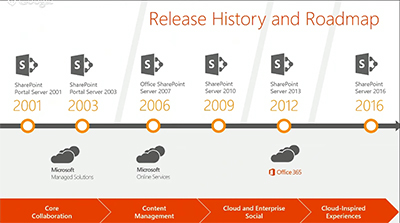
Microsoft's cloud services have been looming in the background of prior SharePoint Server releases. Kashman illustrated this concept with the following slide:


[Click on image for larger view.]Cloud support for Microsoft's SharePoint Server products. Source: 2015 SPBiz keynote.

Office 365 cloud services have played a role since SharePoint Server 2013, and they will do so going forward with SharePoint Server 2016. "Everything we're doing in Office 365 inspires the [SharePoint Server] product going forward, and you'll see this cadence continuing," Kashman explained.

Office 365 is Microsoft's fastest growing product yet, and SharePoint Online is a "huge" part of that, Kashman said. Some of the four workloads in SharePoint Online have been growing at a rate that's been beyond Microsoft's expectations. They've grown since last year at a "400 percent monthly active user rate," Kashman said. And across sites with OneDrive for Business, Microsoft is seeing a "300 percent year-over-year growth."

SharePoint Server 2016 will have a more unified end user experience across components, Kashman promised.

"As we brought in some of our acquisitions, as we brought in other elements, part of our focus was to make sure it felt like a unified experience across all of the workloads: social, enterprise content management, sites and portals, personal files and whatnot."
Instead of managing five to six servers, IT pros now manage one unified server experience with the new SharePoint Server, Kashman added.

SharePoint Behind the Scenes
Microsoft has been moving its various technologies into the cloud, with new services such as Delve, Clutter and Groups, which are becoming part of "a common experience layer," rather than hanging out in separate application silos. This concept also applies to Office add-ins. It all will be part of a common framework for Office 365 experiences. Microsoft is taking these technologies, along with scalability improvements, and pushing them into SharePoint Server 2016, Kashman said.  
Kashman also answered his own question, "What is SharePoint?"
"It can be all or one thing. You can have a great search experience across file servers and third-party repositories. Or you can stand it up for your company intranet, or for your core collaboration sites and tons and tons more with BI and all of the active development. But the core essence of where we are taking, and how we think about SharePoint, is we are continuing the standards of releasing on-premises versions every two or three years and innovating in the cloud, sometimes every day with fixes and security updates, but certainly on the cadence of every week, every month, every quarter, we're releasing updates, new features and sometimes new experiences."
Some Office 365 technologies aren't being labeled as SharePoint, but they basically use SharePoint, Kashman explained. He pointed to Office Delve, which surfaces organizational information using Microsoft's FAST enterprise search technology as well as Office Graph technology. Delve works with Clutter, an Exchange feature that's used to prioritize e-mail messages in Outlook. Microsoft also has an Office 365 Video service that takes info from Office Graph.
"So SharePoint, in essence, could be Delve, or it could your company portal on premises," Kashman said.
Portals, Search and Files
Kashman said that Microsoft will be adding technologies to SharePoint, not replacing them. He highlighted three improvements coming in SharePoint Server 2016, namely Next-Generation Portals, Search and Files.
Next-Generation Portals will have a simplified administration approach and it will be more personalized for end users. For instance, Next-Gen Portals will be connected to Yammer and will be mobile enabled. Microsoft will permit extensibility to these Next-Gen Portals for its partners to build upon, Kashman explained. He also later said that Microsoft will be building its "boards" feature into the Next-Gen Portals for knowledge management. The boards feature, based on Office Delve technology, lets end users organize content, such as documents related to a particular project.
Search improvements in SharePoint Server 2016 were equated with Delve, based on Office Graph technology. Delve will enable more personal discovery experiences for end users and will have governance controls for IT departments. There will be coming support for hybrid scenarios, too, namely organizations that combine the use of Office 365 services with SharePoint Server on premises. It's essentially SharePoint behind the scenes that powers Office Graph, Kashman explained.
Files in SharePoint 2016 will get improvements, which Kashman identified with OneDrive for Business. Previously, it was My Documents. The user experience is getting improved with OneDrive for Business. Mobile device management and data loss prevention capabilities are being added.
Converging Products
Microsoft has been converging its online and on-premises SharePoint products and now has "a more consistent code base," Kashman said. The new code base is helping to close the parity gap between the on-premises and online products.
Microsoft also has been taking learnings from its Office 365 massive-scale cloud operations and bringing it down to its on-premises product, he added. Microsoft has become more agile, with a goal of no downtime when patching its SharePoint Online service, and that concept is filtering down to the server product.
"What we do now in the cloud is when we patch or manage the system we take no downtime," Kashman said. "With [SharePoint Server] 2016 we introduced this concept of zero downtime and we're super excited about bringing that to you on premises."
Kashman's talk is available on demand at this page (sign-up required). Signing up also provides access to about 73 other SPBiz talks for a limited period of time.
About the Author
Kurt Mackie is senior news producer for the 1105 Enterprise Computing Group.

https://redmondmag.com/articles/2015/06/26/sharepoint-2016-cloud-first.aspx