[Webinar] Deep dive into the features of SharePoint 2016 (Part 1): Join Vignesh in the first part of his SharePoint 2016 Webinar. If you are wondering what’s in SharePoint 2016 then this session is awesome. Watch part 2 here. What does this webinar cover? SharePoint 2016 Overview & Focus areas Software & Hardware Requirements to implement SharePoint Server 2016 What’s new & what’s deprecated in SharePoint 2016 ? Deep […]
[Webinar] Deep dive into the features of SharePoint 2016 (Part 2): Join Vignesh in the second part of his SharePoint 2016 Webinar. If you are wondering what’s in SharePoint 2016 then this session is awesome. Watch part 1 here. What does this webinar cover? Converged Codebase Custom Tiles Logging How to upgrade Recap & Conclusion Things that people will learn from this webinar You will learn about the […]
How to Create a More Complex Workflow using SharePoint Designer: In this demonstration using SharePoint Designer Laura illustrates some of the more detailed elements of SharePoint workflow during several stages of her scenario. She uses an Assign Task workflow and describes the task options that are available and which are the best choices for her scenario. The workflow functions used include: calculations and [
Site Permissions Governance Methods: In SharePoint and SharePoint Online with Office 365, permissions have always been one of the major pain points when it comes to end users, training and adoption. The user interface on the permissions screens, and the complexity revolving around inheriting or breaking permissions, are in many cases quite challenging to grasp. In this session, […]
The Top 10 Ways To Improve Office 365 & SharePoint Adoption: Office 365 provides an incredible amount of value to individual employees, teams, departments and organizations. Much of this value is not realized immediately upon purchase or even deployment of Office 365. The value is realized as more and more users understand, adopt and embrace the technology that has been implemented. So how can organizations drive […]
Applies To: SharePoint Online, Office for business, Office 365 First Release program
A document library provides a secure place to store files where you and your co-workers can find them easily, work on them together, and access them from any device at any time. For example, you can use a document library on a site in Office 365 to store all files related to a specific project or a specific client. Adding files or moving files between folders is as easy as dragging and dropping them from one location to another.
NOTE: Some features are currently only available in classic mode. Click Return to classic SharePoint in the bottom, left corner of the page to switch to classic mode.
The default site in Office 365 includes a document library and one is created automatically when you create a new site. You can add additional document libraries to a site as needed. This is useful, for example, if you need to restrict access to a set of files. Each document library displays a list of files, folders, and key information about each, such as who created or last modified a file. You can use this information to organize your files and make it easier to find them.
In a document library, you can:
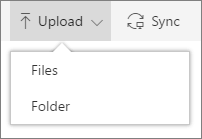
Add, edit, delete, co-author, and download documents.
Control who has access to a library, a folder with in a library, or an individual file within a library.
Track the activity on a file, such as when it was last modified, and receive a notification when something has changed.
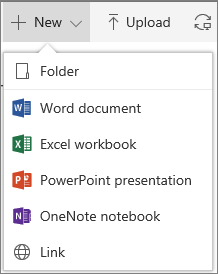
Add a link in a document library to something that is stored outside the library, for example, a link to a file located in a different library or even a link to an external web page.
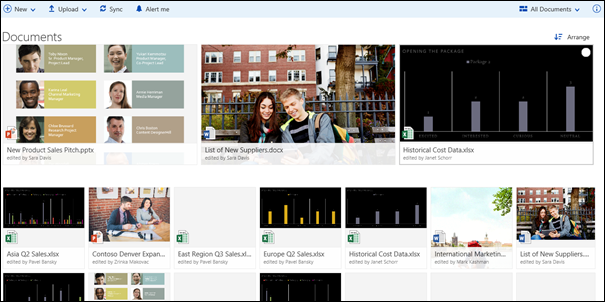
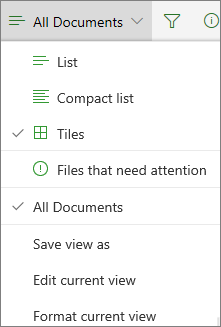
At the top right of the document library page, you can change the document library view to either list view or grid view. If using Internet Explorer, you can open the document library in Windows File Explorer, by clicking View in File Explorer. You can also save a custom view by clicking Save view or, if you are a library owner or administrator, you can manage views on the library settings page by clicking Manage views.
You can add new columns and select the columns to display by clicking on the far right side of the column headers if you're in list view or, if you're in grid view, by clicking and then clicking on the far right side of the column headers.
You can view and edit information about a file or folder, such as required properties, recent activity or who a file is shared with, in the information pane. To show or hide the information pane, select a file or folder and click on the right-hand side of the main menu. You can also view the information pane by right-clicking a file or folder and selecting Details.
When you select a folder or file, the menu at the top left of the document library changes to a list of actions you can perform on that folder or file.
NOTE: To expose the file or folder menu when in thumbnail view, click the top right corner of the thumbnail.
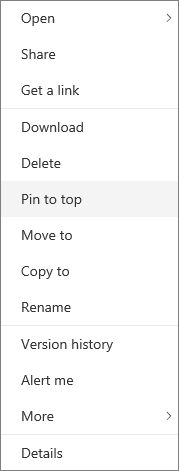
You can see another version of the document menu by right-clicking the file name or, if in list view, by clicking next to the file name. This menu contains additional actions such as Pin which highlights files so you and others can find them quickly.
Ready to start?
Here are some additional help articles to get you going:
Today’s post was written by Jeff Teper, corporate vice president for the OneDrive and SharePoint teams.
Today, at our Future of SharePoint event in San Francisco, we unveiled a new cloud-first, mobile-first vision and roadmap for SharePoint, along with innovations that empower people, teams and organizations to intelligently discover, share and collaborate on content from anywhere and on any device. We also announced general availability of SharePoint Server 2016, which includes new hybrid capabilities that enable on-premises customers to tap into the innovation we’re delivering in Office 365.
For over a decade, our customers—including Booz Allen Hamilton, Coles and Marks and Spencer—have relied on SharePoint to power teamwork, to automate business processes, to create business applications and to build company-wide intranets. As a core part of Office 365, SharePoint provides content management and collaboration capabilities that are seamlessly integrated with the other applications people use every day to create and co-author documents, meet and work with their teams, brainstorm, analyze and make decisions. SharePoint is also integrated with the powerful cross-suite capabilities of Office 365, such as Office 365 Groups, the Office Graph, and governance controls for security, privacy and compliance.
More than 200,000 organizations use SharePoint today and an extraordinary community of more than 50,000 partners and 1 million developers make up a $10 billion solutions ecosystem around SharePoint.
And the best is yet to come. Microsoft is on a mission to empower every individual and organization to achieve more. Watch this video to hear our CEO Satya Nadella underscore the importance of SharePoint to our ambition to reinvent productivity:
“We are continuing to advance SharePoint, OneDrive and the entire Office 365 service in ways that make productivity even more collaborative, intelligent, mobile and trustworthy.” —Satya Nadella
We are thrilled to share our vision for SharePoint Online in the cloud and SharePoint Server on-premises, along with progress to date and our roadmap across four areas of innovation:
Simple and powerful file sharing and collaboration on any device.
The mobile and intelligent intranet, with modern team sites, publishing and business applications on your desktop and in your pocket.
An open and connected platform that evolves SharePoint extensibility to embrace modern web development.
Investments in security, privacy and compliance across Office 365.
Simple and powerful file sharing and collaboration on any device
Today, we reveal our vision for unified access and intelligent discovery for all of your Office 365 files, making it easier than ever for you to create, share, collaborate on and manage documents from anywhere, on any device. You’ll love that files find you, instead of you having to find files, whether you’re using one of our 4+ star-rated mobile apps or the intuitive browser experience. And when you want files with you on the road, we give you rock-solid, selective sync between your PC and Mac and offline files on your mobile device.
When you’re working in Office applications, you get instant access to rich file sharing and collaboration features. You can co-author documents in real time, compare document versions, update metadata and share with colleagues, without leaving the application.
When you want to share a document you created, it’s as easy as sending an email message—recipients are automatically granted permissions and everyone works on the shared file, eliminating version proliferation and ensuring a “single source of truth.” When you need enterprise-grade content management, document or records management capabilities, we put them at your fingertips. Whether a file is yours, is shared, is the highly collaborative work of your team or is an asset of the entire organization, we make the simple powerful and the powerful simple.
We’re excited to announce that the following capabilities will be rolling out this quarter:
Access to SharePoint Online document libraries and Office 365 Group files from the OneDrive mobile app.
Intelligent discovery of documents from both OneDrive and SharePoint.
Copy from OneDrive to SharePoint in the OneDrive web experience.
OneDrive Universal Windows Platform (UWP) application.
And before the end of calendar year 2016:
Document analytics surfaced in OneDrive to provide insight into document usage, reach and impact.
Synchronization of SharePoint Online document libraries with the new OneDrive sync client.
Synchronization of shared folders with the new OneDrive sync client.
Mobile access to SharePoint document libraries in on-premises farms.
Move and copy files between OneDrive and SharePoint in web experiences.
The intranet is the nerve center of many organizations. It provides content-centric collaborative spaces that give teams the resources they need to work together. It lets users consume and contribute news and information within their teams and across the organization. It manages knowledge and connects users to content through navigation and search. It hosts applications that support and automate business processes.
SharePoint is now making your intranet more accessible on the go, more intelligent, and more personalized, based on your activities across sites, the people you work with, the content you work on and the business processes you drive.
SharePoint mobile app—your intranet in your pocket
We’re thrilled to announce the SharePoint mobile app, designed for Windows, iOS and Android, to put your intranet in your pocket, with full-fidelity access to company news and announcements, people, sites, content and apps—no matter where you are. And the app will incorporate your on-premises SharePoint sites, as well.
Learn more about the SharePoint mobile app and see it in action in this video:
SharePoint home
The new SharePoint home page in Office 365, rolling out this month, gives you unified access to all of your sites—online and on-premises—and lets you navigate seamlessly through your intranet, as well as catch up with activity across your sites with just a glance.
Modern team sites
Team sites have always been at the heart of collaboration with SharePoint. They connect your team with the content, the information and the apps you rely on. And they enable sharing and communication within the team and across the organization.
We’re bringing the power of SharePoint team sites and Office 365 Groups together, giving every group a team site, and giving team sites the benefit of groups for simple management of membership across Office 365 services. If you are assembling a team or starting a project, you can create a team site from the SharePoint home and provision a corresponding Office 365 Group in just seconds, with integrated information classification and compliance.
You’ll find a modernized team site experience, with an engaging home page personalized by the intelligence of Office Graph. Revitalized libraries and lists enable immediate productivity with an intuitive user experience and provide rich metadata, content management and functionality that can support sophisticated business processes. We’re also introducing a new page authoring and publishing experience that allows you to create beautiful, feature-rich pages that are responsive, mobile and easy to share with your team and the organization.
These new experiences will be beautiful on any device, in the browser, the SharePoint mobile app and the OneDrive app.
Microsoft Flow and PowerApps integration
SharePoint lists give teams the ability to access, share and collaborate around structured data. Customers regularly bring data from other systems into SharePoint lists to support business processes. Last week, we announced Microsoft Flow, a new service for automating workflow across the growing number of apps and SaaS services that business users rely on. Microsoft Flow includes connectors that enable you to exchange data between SharePoint and a variety of Microsoft and third-party services, and store and modify that data within SharePoint. We’re pleased to announce deep integration of SharePoint and Microsoft Flow, which allows you to create and launch Flows directly from a SharePoint list.
We’ve also announced the public preview of PowerApps, our new enterprise service for innovators everywhere to connect, create and share business apps with team members on any device in minutes. PowerApps is also being integrated directly into the modern team site, so you can create cross-platform PowerApps that utilize SharePoint lists and libraries as a data source. Deep and native integration of PowerApps and SharePoint will also drive rich new experiences with lists and libraries.
The SharePoint Framework—open and connected platform
SharePoint’s rich solutions ecosystem is one of its greatest assets, and we recognize that there are opportunities to meet the evolving needs of developers in the mobile-first, cloud-first world.
We are pleased to announce the SharePoint Framework, a page and part model that enables fully supported client-side development, easy integration with the Microsoft Graph and support for open source tooling.
The SharePoint Framework is an evolutionary step in SharePoint extensibility that delivers a new client-side rendering framework leveraging open source JavaScript technologies. The client-side development framework will allow developers to use modern JavaScript and web templating frameworks across cloud and on-premises SharePoint.
We used the SharePoint Framework to create many of the experiences that we announced today, like the home page of a team site. Our customers can now build similarly powerful, rich apps and experiences in SharePoint, integrating services across Office 365 following the same patterns, practices and process we use to build native SharePoint experiences. Pages and experiences built with the SharePoint Framework will be mobile by default and will be integrated with the SharePoint mobile app.
The SharePoint Framework embraces the tools, frameworks and open source initiatives that developers rely on today, and it extends the scope of solutions that can be built on SharePoint, in the cloud and on-premises.
The SharePoint Framework will be released to Office 365 customers in First Release this summer. Web parts built with the framework can be added to modern pages and experiences and to existing pages.
In the third quarter of 2016, you will see:
The Files API on Microsoft Graph.
SharePoint Webhooks (preview).
Client-side web parts for existing pages (preview).
We operate Office 365 with a commitment to security, privacy and compliance. In SharePoint, we bring together security, privacy, and compliance with a simple and powerful set of administrative controls, policies and reports.
We know there can be no security without usability. That’s why we provide you with IT controls that ensure the right balance between security and user productivity, so that the level of security is commensurate with the sensitivity of the content.
Today, we are announcing dynamic conditional access policies in SharePoint that intelligently define access based on who you are, the app or device you are using and your network location.
We equip you with tools to discover and protect content with data loss protection (DLP) policies, both in Office 365 and in SharePoint Server 2016. We offer more than 80 pre-built definitions of sensitive content, and you can add your own custom policies. These policies can be set once and applied across your tenant and into your on-premises farms. Later this year, you will be able to classify a SharePoint site so that appropriate policies are scoped to all content in a site.
When you need insight into security and privacy, for auditing or compliance purposes, we give you detailed reporting and auditing. Earlier this year, we introduced Advanced eDiscovery that integrates machine learning, predictive coding and text analytics to reduce the costs and challenges that come with sorting through large quantities of data. Later this year, we will release SharePoint Insights, a service which aggregates usage and compliance data from on-premises and cloud into the Office 365 Reporting Center, so you can get a unified view across your entire organization.
And we will continue to lead the fight to protect your data and to ensure privacy. I’m happy to announce that by the end of the year we will allow you to bring and manage your own keys to encrypt your data stored in SharePoint.
To summarize, we currently support:
Customer Lockbox.
DLP, mobile device management (MDM) and mobile application management (MAM).
Whitelist and blacklist domains for external sharing.
This quarter, we will release:
Dynamic conditional access policies.
And by the end of 2016, you will see:
New datacenters in Germany and Canada.
Bring your own encryption key.
Granular access controls.
SharePoint site classification.
Hybrid SharePoint Insights (preview).
Learn more about these announcements in this video:
You can learn more about the robust security, privacy and compliance fabric of Office 365 at the Office 365 Trust Center.
Connecting you with innovation
At Microsoft, our mission as a company—to empower every person and every organization on the planet to achieve more—is not only about the products we create, but how we enable customers to get the most value out of those products and services. Office 365 will continue to be where we lead with our newest innovations, and we are partnering with you to help you maximize your investment.
This is why we created Microsoft FastTrack for Office 365—a set of best practices, tools, resources and experts committed to make your experience with Office 365 a success and help you realize business value faster with Office 365. FastTrack is available at every step of your journey, as you discover what is possible, plan for successful rollouts and enable new users and capabilities.
One of the great benefits of FastTrack is migration services. For customers with more than 150 seats of eligible SKUs, we provide no-cost engineering lead services to move your files to Office 365. FastTrack currently supports file migrations from on-premises file shares. We also support file migration from Google Drive. And today, we are introducing a new migration service to help you move your files from Box to Office 365 as a no-cost benefit of FastTrack, so you can take advantage of all that Office 365 has to offer.
For our on-premises and hybrid customers, SharePoint Server 2016, Project Server 2016 and Office Online Server reach general availability today, and can be deployed to your datacenter as your foundation for the future. We will be updating SharePoint Online regularly, and SharePoint Server 2016 Software Assurance customers will have the opportunity to enable many of our cloud-born innovations in their on-premises SharePoint farms with new Feature Packs we release in calendar year 2017. To learn more, read “SharePoint Server 2016—your foundation for the future.”
We are humbled by the extraordinary community of customers, developers, partners and enthusiasts whose input has contributed to the vision and innovations we delivered today. On behalf of everyone on our team, I welcome you to the future of SharePoint: simple, intelligent and untethered. The future starts today.



 on the far right side of the column headers if you're in list view or, if you're in grid view, by clicking
  and then clicking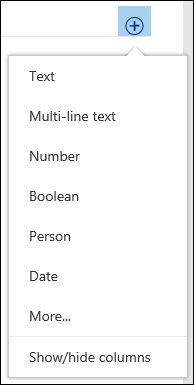
 on the right-hand side of the main menu. You can also view the information pane by right-clicking a file or folder and selecting Details.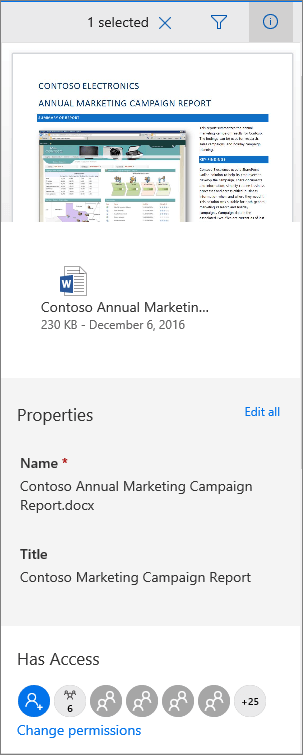
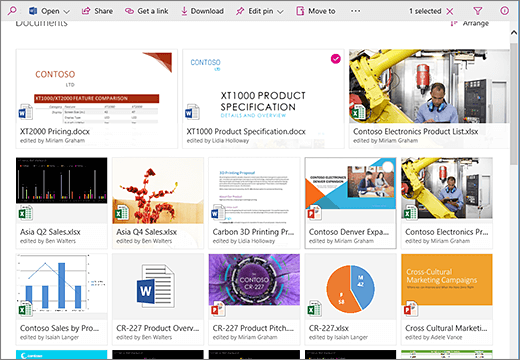
 next to the file name. This menu contains additional actions such as Pin which highlights files so you and others can find them quickly.